ISP: Courses and conferences
On the Courses and conferences page in a doctoral student’s ISP, the doctoral student’s mandatory and elective courses can be planned. When a result is certified in Ladok, it can be sorted into the doctoral student’s ISP here.
Sort results
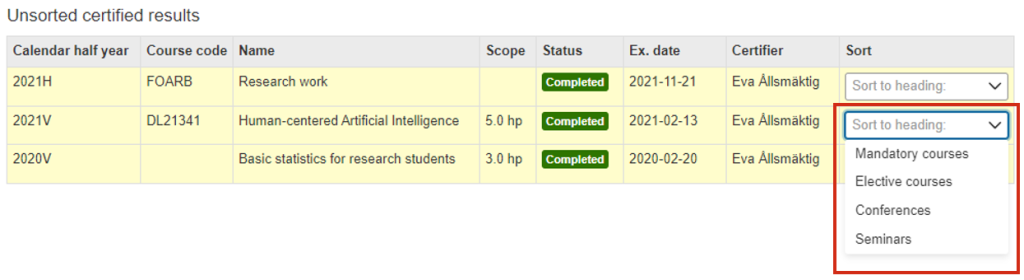
When a result for a course, conference, or equivalent is certified in other parts of Ladok, it is automatically shown in the doctoral student’s ISP as an unsorted result. After that, you need to sort it manually under the correct heading.
- Go to the section Unsorted certified results
- In the row for a result: Click Sort to heading
- Choose which heading to move it to: mandatory courses, elective courses, conferences, or seminars.
The result is sorted. It is possible to change the information afterwards. Click Select → Change in the row for a course or conference to change its placement.
Plan courses and conferences
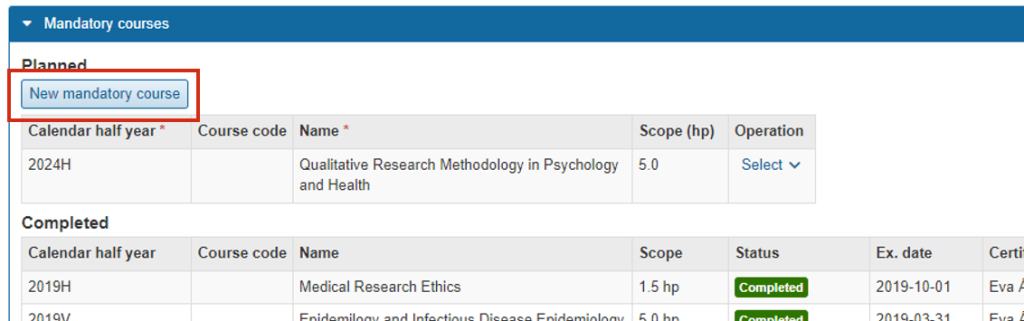
It is possible to plan upcoming courses and conferences on the page. These are only used within the individual study plan and are input only. So when the doctoral student has participated in the course and received a result, the planned course will not automatically be cleared from the ISP.
- Go to the panel within which the course or conference should be planned
- Under the heading Planned: Choose to create a new
- Fill in the mandatory information and save.
The course or conference is added as planned. It is possible to change the information afterwards. Click Select → Change in the row for a course or conference to change it.
Credit transfers / Credited education
If the doctoral student has any credit transfers for entire courses or ”Other equivalent education,” they are automatically added under the heading Credit transfers / Credited education.
Non-credit-bearing activities
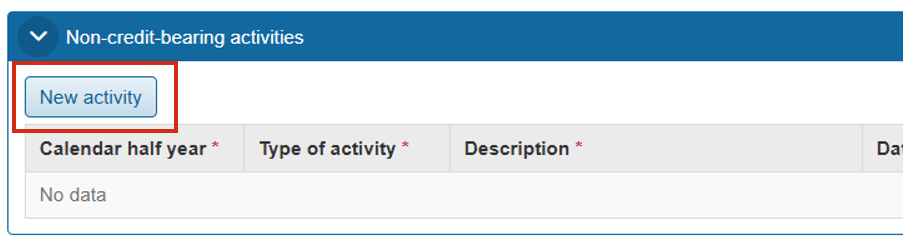
This panel is only available at some universities.
In the Non-credit-bearing activities panel, you can add activities that the doctoral student plans to carry out that do not give credits. This can, for example, be conferences, seminars, or international participation.
- Scroll down to the Non-credit-bearing activities panel
- Click New activity
- Fill in the mandatory information.
The activity is added to the ISP.
It is possible to change the information afterwards, for example to change the status from ”Planned” to ”Completed.” Click Select → Change in the row for an activity to change it.