A new version of the individual study plan (ISP) is created when it is time for a new round of planning and follow-up together with the doctoral student.
How to
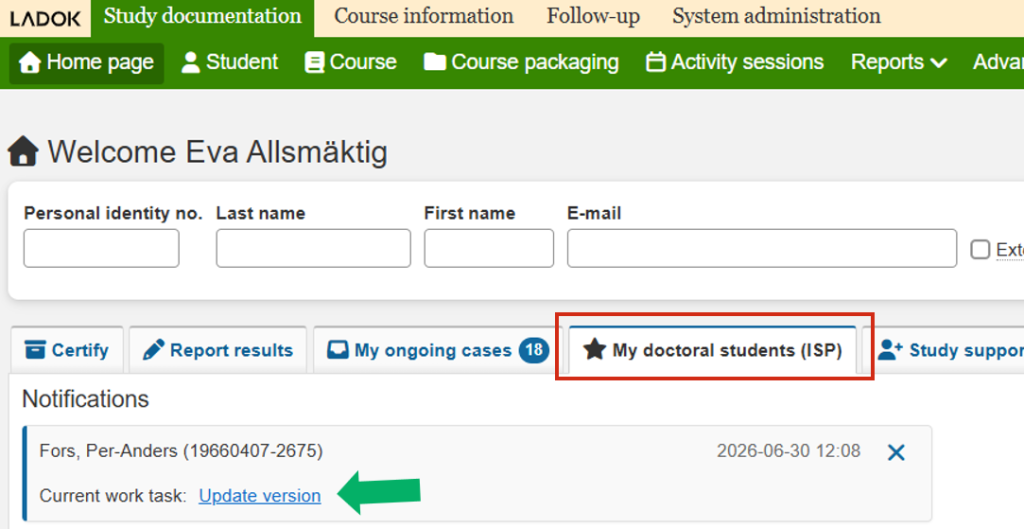
Go to the tab My doctoral students (ISP) on your home page
Find the doctoral student in the list and click on their personal identity number
You are now redirected to the Individual study plan of the doctoral student
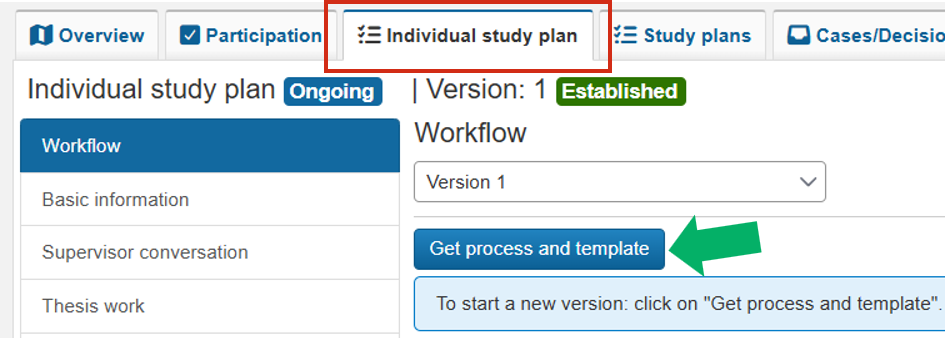
Click Get process and template.
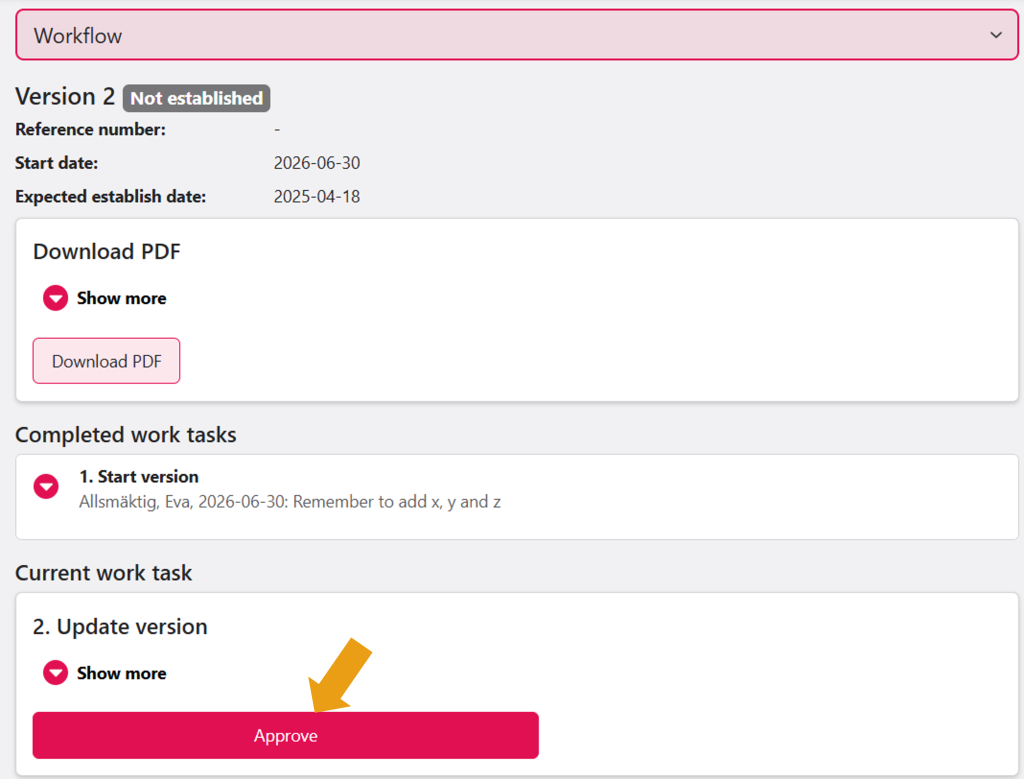
A new, not yet established version is created. The workflow shows what the next step is to update the content.
When a new version of a doctoral student’s ISP has been created, the principal supervisor and the doctoral student work together to update it.
How to
Find your task
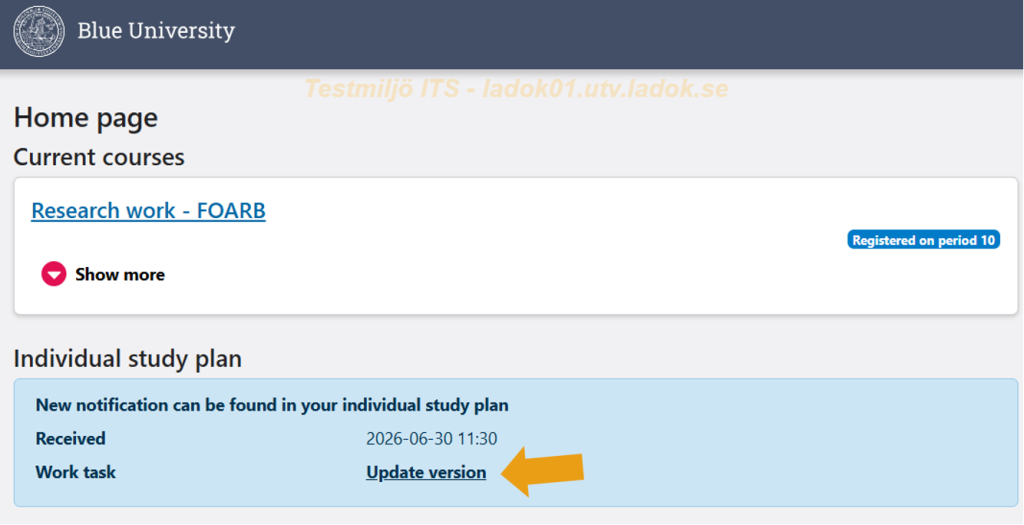
You receive a notification when there is something for you to do.
Go to the start page in Ladok and go to the My doctoral students (ISP) tab.
Under Notifications, you can see the tasks you need to do now.
Click the link for the task.
Find what you need to do
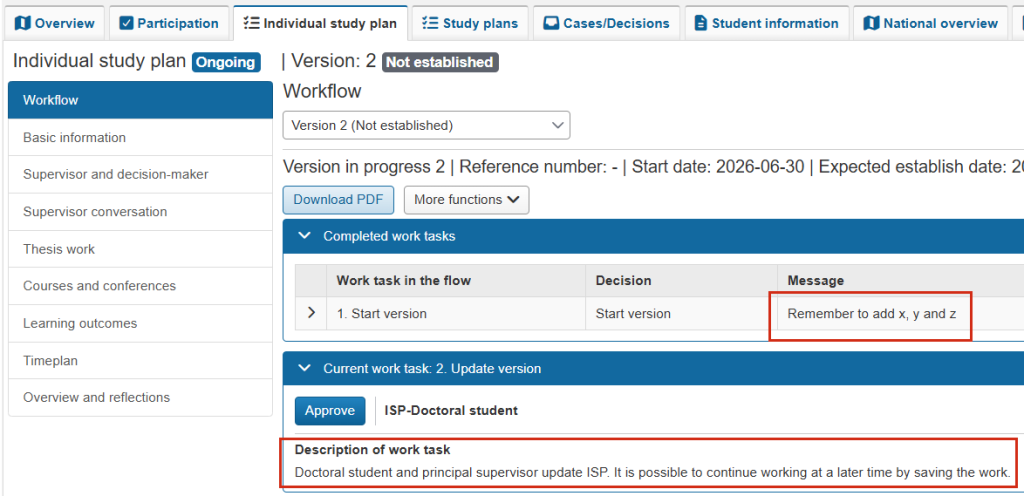
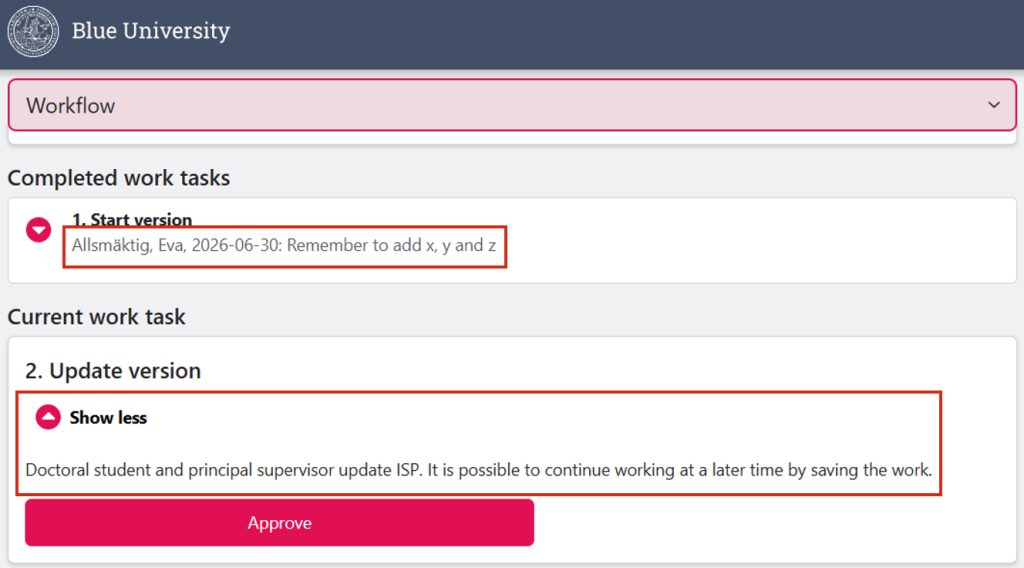
Read the instructions in the Current task panel. This describes what needs to be done now and which role is responsible for the task.
Read any messages in the Completed tasks panel. Here you will find messages from other people who have worked on the ISP.
Update the ISP on the different pages
Use the menu on the left to access the different parts of the ISP. You can read information and make changes.
Ladok provides support to help you see what needs to be done:
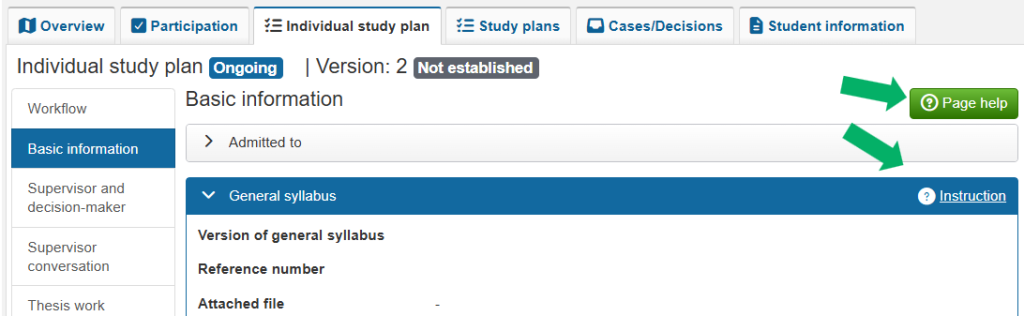
Each page has Page help. This is a general description of the page that applies to all universities.
In the row for each panel, there may be an Instruction. This describes what applies specifically to your university.
Move forward in the workflow
When you have finished making updates, the task needs to be completed. Only the role responsible for a task can complete it.
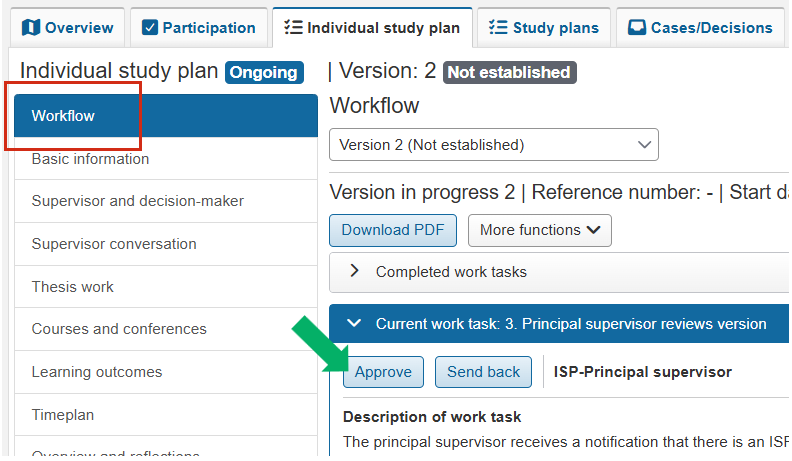
Go back to the Workflow page in the left-hand menu
In the Current task panel, the role responsible is shown, and that role can choose to complete the task.
Sometimes there is also an option to send it back to a previous step. If you send a task back, write a message explaining why. The message is shown in the list of completed tasks and is visible to the other parties.
The task is now completed. The process now moves on to the next task.
When a new version of your individual study plan has been created, you and your principal supervisor work together to update it.
How to
Find your ISP
Log in to Ladok for students
On the start page there is a link to your ISP. Click on it.
Find what you need to do
Under Current task, you can see what you need to do now. Click Show more to see a longer description.
Under Completed tasks, there may be messages from others who have worked on the ISP.
Update the ISP on the different pages
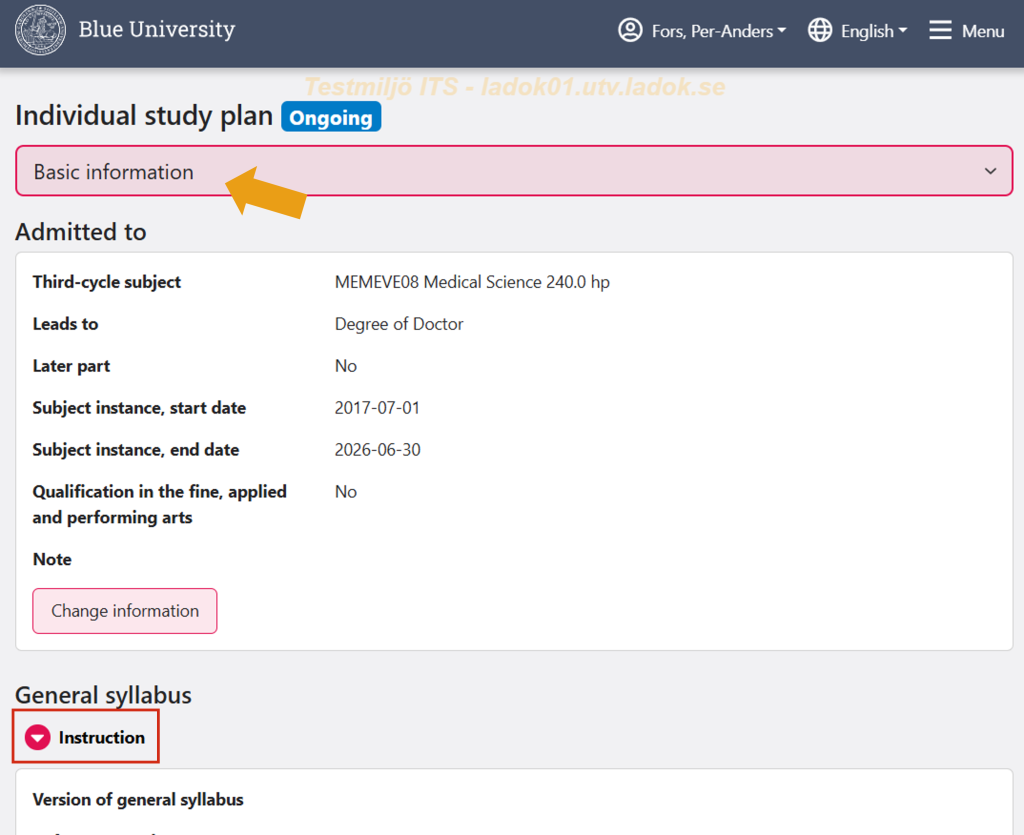
Use the drop-down menu at the top of the page to access the different parts of the ISP. There you can read information and make changes.
The pages may include an Instruction. Expand it to see the instructions that applies specifically to your university.
Move forward in the workflow
When you have finished making updates, the task needs to be completed. Only the role responsible for a task can complete it.
Go back to the Workflow page via the top menu
In the Current task panel, the person responsible for the task can approve it.
Sometimes there is also an option to send it back to a previous step. If you send a task back, write a message explaining why. The message is shown in the list of completed tasks and is visible to the other parties.
The task is now completed. The process now moves on to the next task.
The Basic information page in a doctoral student’s ISP contains basic information about what the doctoral student is admitted to, milestones in doctoral education, and study activity and funding.
The page is divided into different panels where you can add or change information. The panels are described below.
Admitted to
This panel consists partly of information retrieved from other parts of Ladok and partly of information entered manually. The following can be entered:
A note can be added if needed
Artistic degree: Select whether the studies lead to an artistic degree or not. This choice affects which learning outcomes are included in the doctoral student’s ISP.
University resources: State which resources the doctoral student is entitled to.
General syllabus
Here you enter information about the general syllabus.
It is possible to add attachments in PDF format.
Milestones in third-cycle studies
By adding the milestones in third-cycle studies here, it becomes easier to follow the doctoral student’s progression through the education.
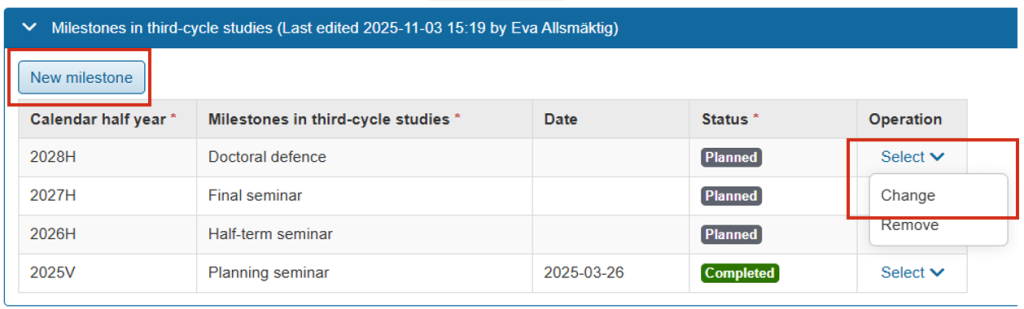
Click New milestone and specify:
Calendar half-year
Milestone in third-cycle studies: Select a milestone from the drop-down list, or select Optional text to enter your own
Date: Date of completion (if known, otherwise leave blank)
Status: Select Planned or Completed
The milestone can be changed as more information becomes available. Click Select → Change on the row for a milestone to change it.
Study activity and funding (SCB)
Planned study activity and funding
Planned study activity and funding can be entered to communicate what the doctoral student is planning for the upcoming six months.
Click New planned study activity and funding and specify:
Calendar half-year
Study activity: Planned study activity for the selected half-year is specified as a percentage (max 100%).
Study funding: Specify the type of funding for the study activity, selected from a list of fixed values. If multiple study funding sources are selected, they must together total 100%.
Reported study activity and funding
This information is retrieved from other parts of Ladok.
It is currently not possible to automatically change study activity from planned to reported. Reporting is therefore handled separately.
Departmental duties
Here you can enter information about departmental duties per half-year.
Click New activity and specify:
Calendar half-year
Extent (in percent)
Description
Status (planned or completed)
The information can be changed as more information becomes available. Click Select → Change on the row for a departmental duties entry to change it.
Other documentation
Here you can add PDF files that need to be documented in the individual study plan. For example, individual study plans established in another system.
It is possible to add a descriptive text to each file that is uploaded.
The Supervisor and decision-maker page in a doctoral student’s ISP shows information about the principal supervisor, supervisors, and decision-makers connected to the doctoral student’s ISP. Roles and persons are retrieved from other parts of Ladok.
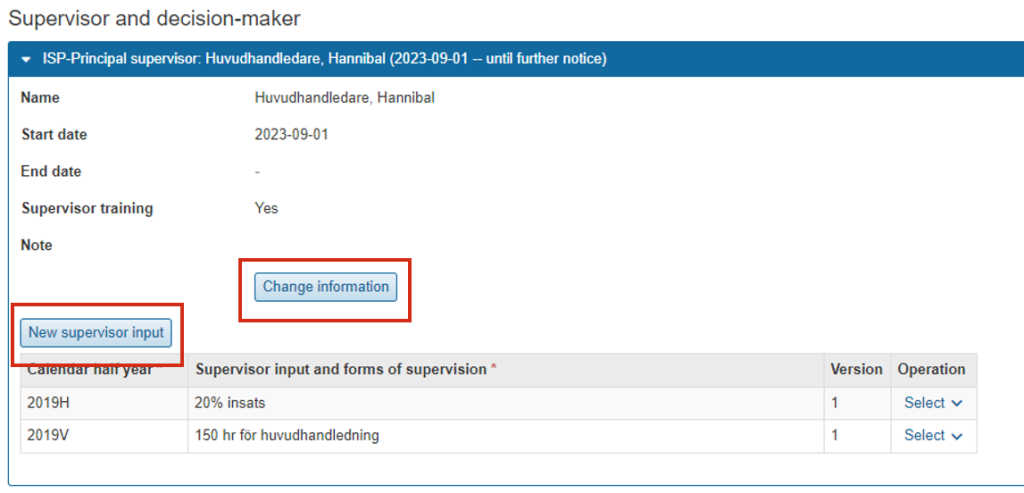
Click Change information to:
Add notes, for example to describe the supervisor’s role or how supervision efforts should be documented. The note is visible to everyone who can see the individual study plan.
Specify whether the person has completed Supervisor training
Click New supervisor input to add a new entry. Specify the calendar half-year and forms of supervision.
The Supervisor conversation page in a doctoral student’s ISP is used to document supervisor conversations held between the doctoral student and the supervisor. Both parties can add and edit information about each conversation.
All supervisor conversations are listed on the page, regardless of which version of the ISP they were added to.
Click New supervisor conversation and specify:
Type of conversation: Select Startup conversation, Follow-up conversation, Annual follow-up conversation, Career conversation or Other
The Thesis work page in a doctoral student’s ISP is used to plan and follow up on the doctoral student’s thesis work.
The page is divided into different panels where you can add or change information. The panels are described below.
Summary
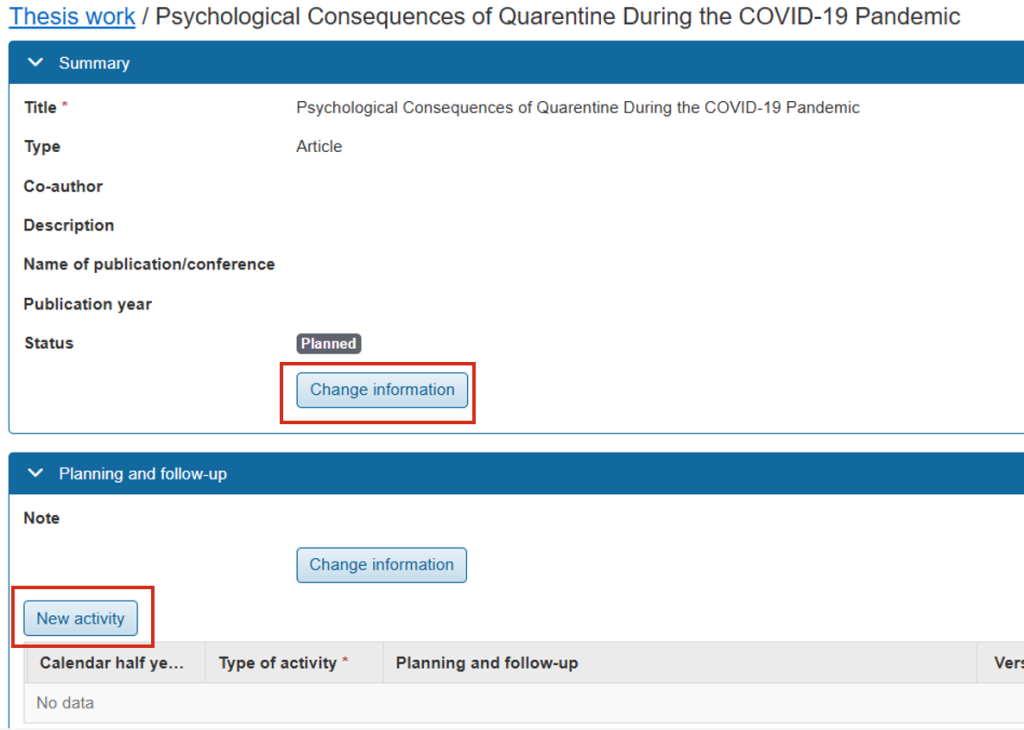
Here you enter basic information about the thesis. It is possible to attach a file in PDF format.
Planning and follow-up
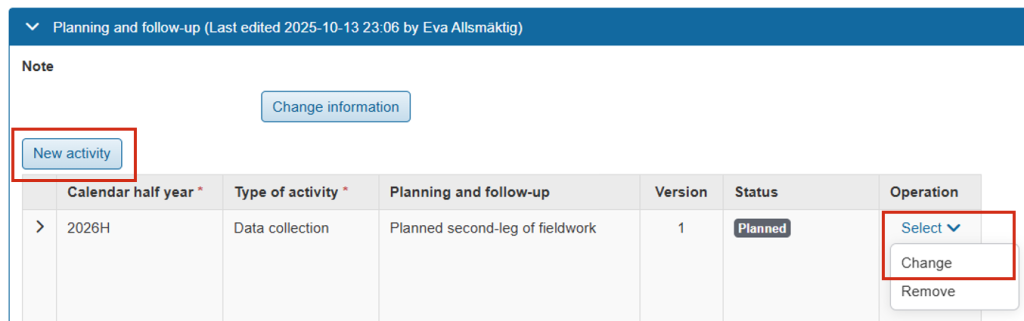
Click Edit information to add a note about how planning and follow-up should be carried out.
Click New activity to add activities that are planned or have been carried out as part of the thesis work. Specify:
Calendar half-year
Type of activity: Select a type from the list or select Optional text to write your own
Planning and follow-up: Write what the doctoral student plans or a follow up on the activity.
Progression can be specified at some universities.
Status: select Planned, Ongoing, Partially completed, Completed, or Not completed
The activities can be changed as more information becomes available. Click Select → Change on the row for an activity to change it.
Part of thesis work
This panel is only available at some universities.
Here you add the parts that make up the thesis. This could, for example, be an article or conference paper in the case of a compilation thesis. For a monograph, it is usually chapters.
All parts of the thesis work are listed on the page to provide an overview. Click on a part to get more information about it or to edit it.
Click New part of thesis work to create a new part. Each part is managed on its own page where you can:
Click Edit information in the Summary panel to add information and status for this entire part of the thesis work.
Click New activity to add a new activity carried out as part of this part of the thesis work. You can add a status for each activity.
Ethical consierations
Here you enter information about ethical approvals or considerations.
You can:
Add a description of the ethical approval or consideration
Attach PDF files; for each file you can add a descriptive text and a reference number
On the Courses and conferences page in a doctoral student’s ISP, the doctoral student’s mandatory and elective courses can be planned. When a result is certified in Ladok, it can be sorted into the doctoral student’s ISP here.
Sort results
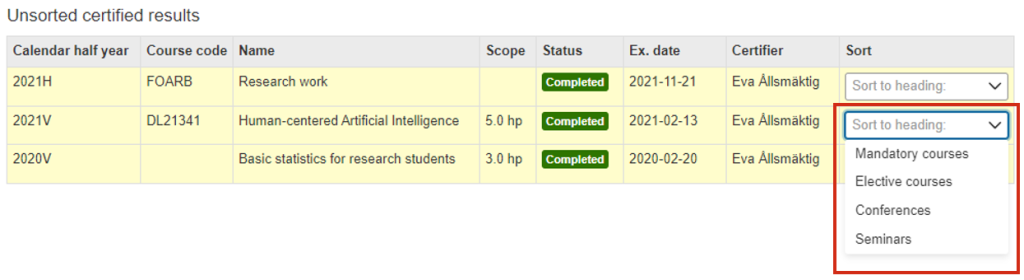
When a result for a course, conference, or equivalent is certified in other parts of Ladok, it is automatically shown in the doctoral student’s ISP as an unsorted result. After that, you need to sort it manually under the correct heading.
Go to the section Unsorted certified results
In the row for a result: Click Sort to heading
Choose which heading to move it to: mandatory courses, elective courses, conferences, or seminars.
The result is sorted. It is possible to change the information afterwards. Click Select → Change in the row for a course or conference to change its placement.
Plan courses and conferences
It is possible to plan upcoming courses and conferences on the page. These are only used within the individual study plan and are input only. So when the doctoral student has participated in the course and received a result, the planned course will not automatically be cleared from the ISP.
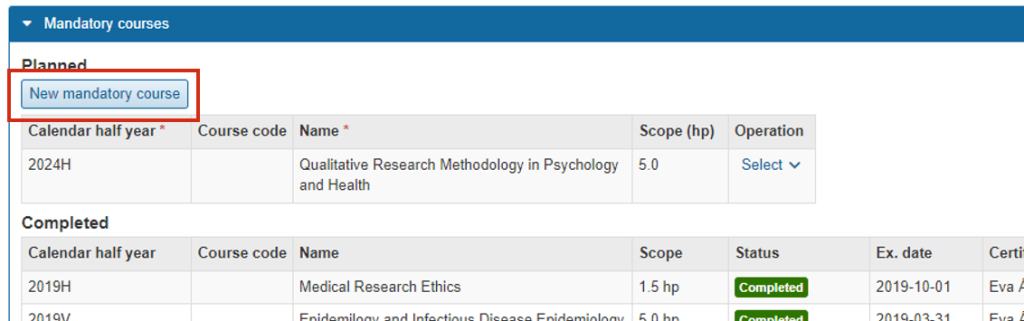
Go to the panel within which the course or conference should be planned
Under the heading Planned: Choose to create a new
Fill in the mandatory information and save.
The course or conference is added as planned. It is possible to change the information afterwards. Click Select → Change in the row for a course or conference to change it.
Credit transfers / Credited education
If the doctoral student has any credit transfers for entire courses or ”Other equivalent education,” they are automatically added under the heading Credit transfers / Credited education.
Non-credit-bearing activities
This panel is only available at some universities.
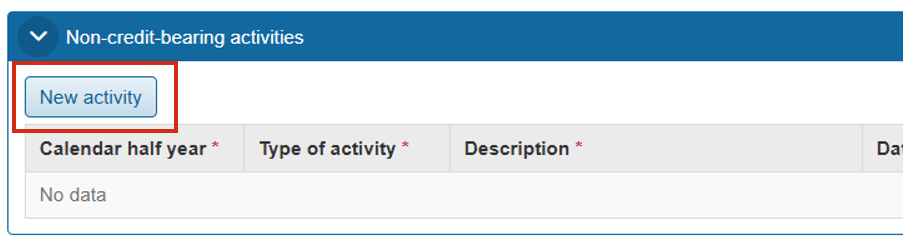
In the Non-credit-bearing activities panel, you can add activities that the doctoral student plans to carry out that do not give credits. This can, for example, be conferences, seminars, or international participation.
Scroll down to the Non-credit-bearing activities panel
Click New activity
Fill in the mandatory information.
The activity is added to the ISP.
It is possible to change the information afterwards, for example to change the status from ”Planned” to ”Completed.” Click Select → Change in the row for an activity to change it.
The Learning outcomes page in a doctoral student’s ISP shows the learning outcomes according to the Higher education, study regulation of 2007.
The learning outcomes are listed on the page together with status and any goal achievement. You can document how the work on each objective is progressing.
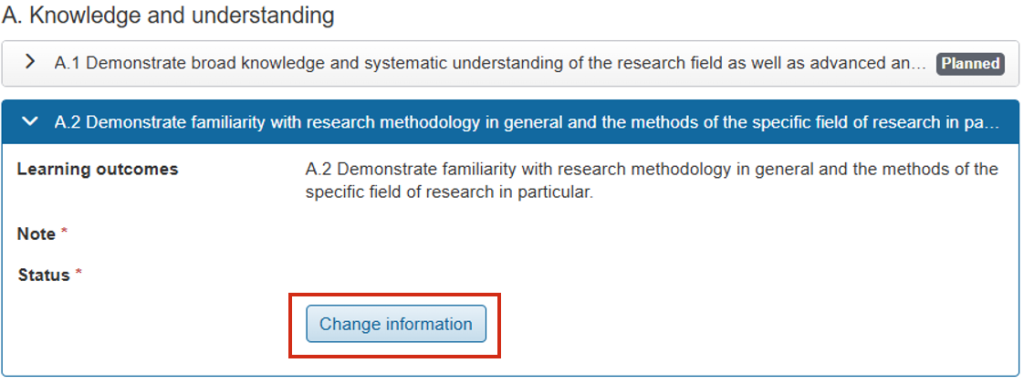
Update learning outcomes
Expand the panel for a learning outcome
Click Change information
Enter a note and specify the status of the objective (planned / ongoing / completed)
It is possible to change the information as the work progresses.
The Timeline page in a doctoral student’s ISP provides an overview of what has been planned and completed during the education, half-year by half-year.
The information on the page is automatically retrieved from the other tabs in the ISP and cannot be edited directly here.
The following is shown in the timeline
Milestones in third-cycle studies: Planned or completed
Study activity and funding: Planned or reported
Supervisor conversation: Type of meeting and date
Thesis work: Planned and completed activities
Part of thesis work: Part of thesis work is listed if there are planned activities within the calendar half-year. The activities are listed under the respective part of the thesis work.
Courses and conferences: Planned or completed. Unsorted certified results are not shown.
Note on the timeline
It is possible to add notes in the timeline, for example by the principal supervisor and doctoral student. The note is visible to everyone who can see the individual study plan.
Notes are part of the ISP and are included in the finalized version of the ISP.
Click Change information in the panel for a calendar half-year
Write or change a note
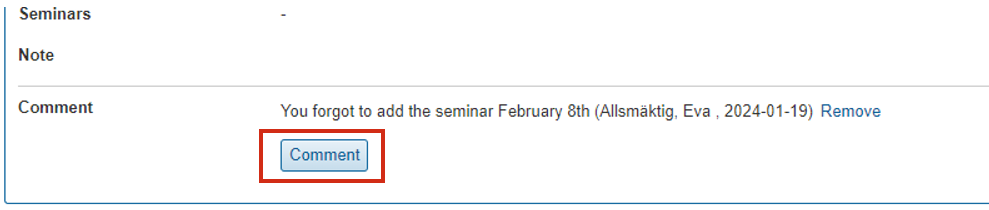
Comment on the timeline
Other people can comment on the timeline, for example a reviewer. Comments are a working tool when the timeline is being developed and are not included in the finalized version of the ISP. The comment is visible to everyone who can see the individual study plan.
When the version is finalized, all comments are automatically cleared.
Click Comment in the panel for a calendar half-year
Write a comment
Only the user who writes a comment can delete it. It is not possible to change comments.
För att ge en bra upplevelse använder vi teknik som cookies för att lagra och/eller komma åt enhetsinformation. När du samtycker till dessa tekniker kan vi behandla data som surfbeteende eller unika ID:n på denna webbplats. Om du inte samtycker eller om du återkallar ditt samtycke kan detta påverka vissa funktioner negativt.
Funktionella
Alltid aktiv
Dessa cookies är nödvändiga för att webbplatsen ska fungera och kan inte stängas av. De används vanligtvis bara när du använder en funktion på webbplatsen som behöver ett svar, exempelvis när du ställer in cookies. loggar in eller fyller i ett formulär.
Alternativ
Den tekniska lagringen eller åtkomsten är nödvändig för det legitima syftet att lagra inställningar som inte efterfrågas av abonnenten eller användaren.
Statistik
Den tekniska lagringen eller åtkomsten som används uteslutande för statistiska ändamål.Dessa cookies används uteslutande för anonyma statistiska ändamål.
Marknadsföring
Den tekniska lagringen eller åtkomsten krävs för att skapa användarprofiler för att skicka reklam, eller för att spåra användaren på en webbplats eller över flera webbplatser för liknande marknadsföringsändamål.